
First run
Once bica is installed, it takes a few minutes to send your first prompt: start the server, sign in to a model provider, and pick the repo the agent should work in.
-
Start Bica in a terminal:
Terminal window bicaIt prints its address and a few keys, then keeps running:
Bica 0.1.0 runningLocal: http://localhost:3141a open as app (Chrome, profile Personal)o open in browserp pick Chrome profileq quitIf it says
Port 3141 is in use. Pick another with --port., start it withbica --port 3150and use that port instead. -
Press
oto open Bica in your browser, orato open it in its own Chrome window. You can also go to http://localhost:3141.The start screen is a composer under a greeting that changes each visit, with a project menu below it:
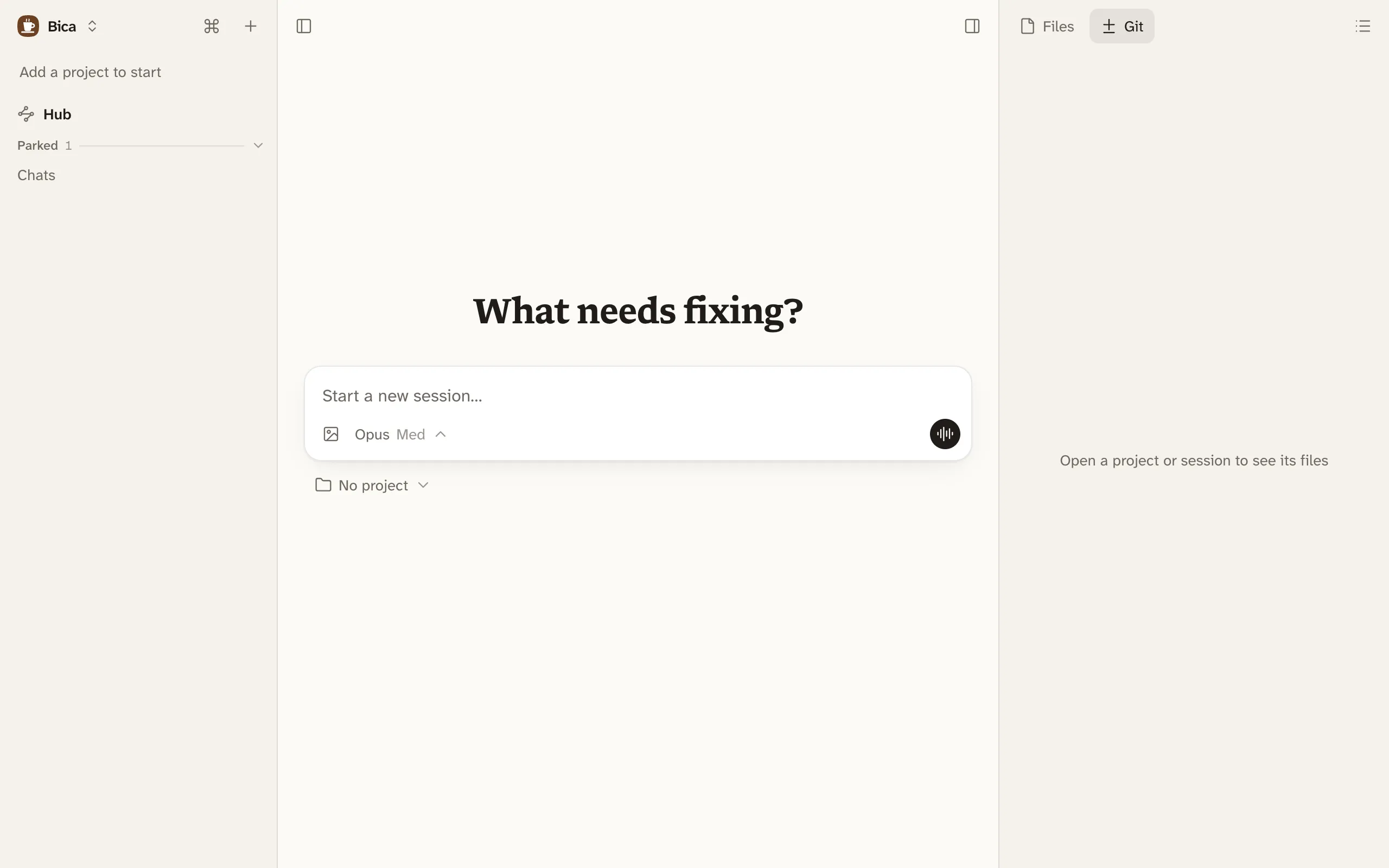
-
Connect a model provider. Open the Bica menu at the top of the sidebar, pick Settings, then press Add provider under Providers. Choose Sign in with a plan for a Claude or ChatGPT subscription and follow the sign-in page, or Add an API key and paste your key. Providers and models covers signing in from another device.
-
Add your repo. Open the project menu under the composer, which says No project, and pick Add project…. A folder browser opens on your machine, with git repos marked. Go to your repo’s folder and press Add this folder.
The project is now picked, and a switch next to it says where the session works: Main folder, the repo as it is, or New worktree, a fresh branch and folder of its own. Leave it on Main folder for now.
-
Type something small, such as What does this project do?, and press Enter.
The session appears in the sidebar under your project, and the reply streams in while the agent reads your code. A chime plays when it’s done.
To ask something that isn’t about a repo, pick New chat, no project in the project menu instead. Projects and worktrees explains both choices, and sessions explains what you see in a session.
Stopping Bica
Section titled “Stopping Bica”Press q or Ctrl-C in its terminal. That closes its terminals, and any run still going continues the next time you start bica. The CLI reference lists every key and option.
Bica has no login, so it only listens on your own machine. To use it from another device, follow use it from your phone.