
Use it from your phone
Bica only listens on the machine it runs on. To follow your sessions from your phone or a second computer, give it an address on Tailscale, a free private network between your own devices.
Only devices signed in to your Tailscale account can reach that address. Nothing is opened to the internet.
-
Install Tailscale on the machine that runs
bicaand on your phone, and sign in to the same account on both. -
On the machine that runs
bica, give Bica an HTTPS address:Terminal window tailscale serve --bg --https=3141 http://localhost:3141If HTTPS isn’t turned on for your tailnet yet, the command prints a link to turn it on. Open it, then run the command again.
-
Find the address:
Terminal window tailscale serve statusIt looks like
https://<machine>.<tailnet>.ts.net:3141. -
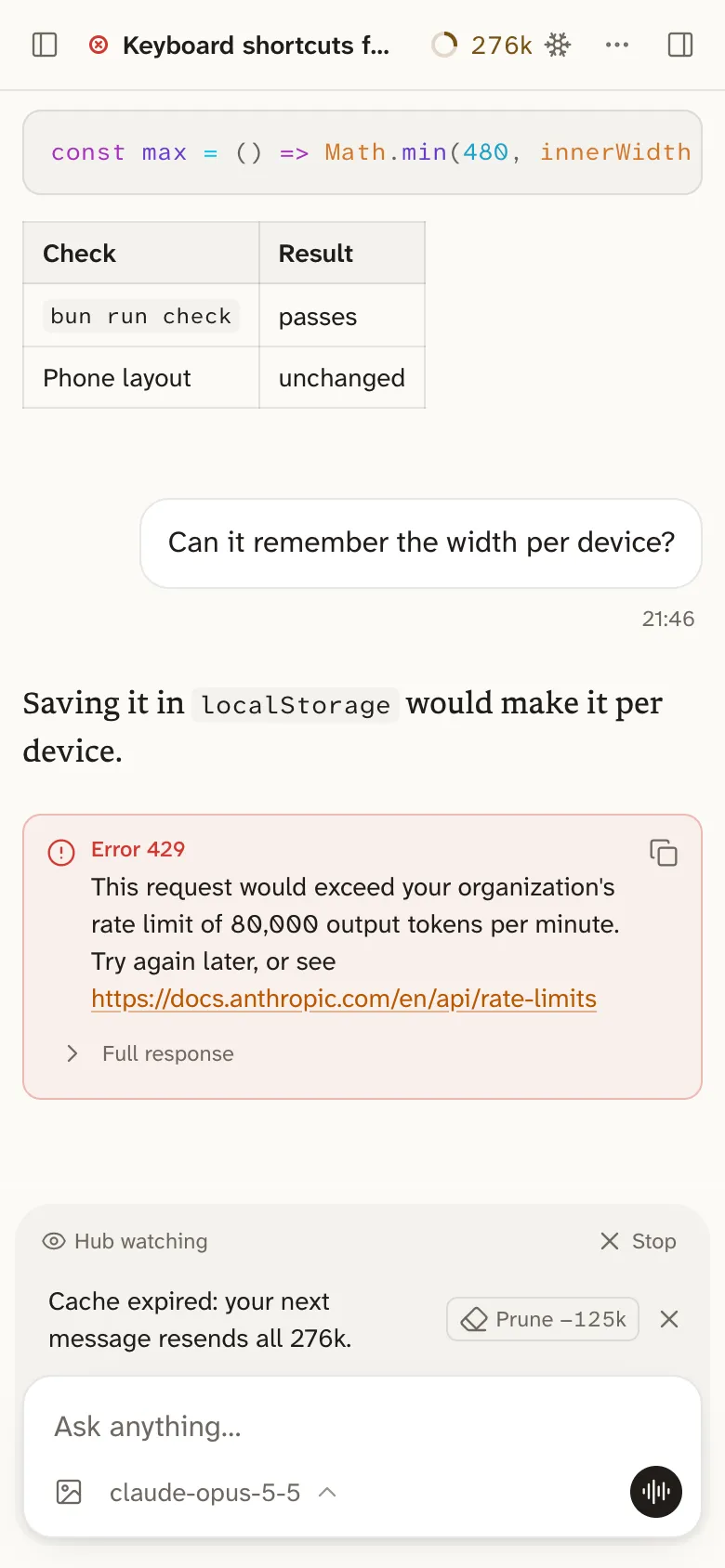
Open that address on your phone. You see the same sessions as on the laptop, updating live.
Tailscale keeps this setting across reboots, so from then on only bica has to be running. If you start bica with --port, use that port in both places.
Install it as an app
Section titled “Install it as an app”Bica can sit on your home screen or Dock with its own icon and window. The icon shows a badge with the number of sessions that need you.
- On an iPhone or iPad, open the address in Safari, tap Share, then Add to Home Screen.
- On Android, open it in Chrome, then pick Add to Home screen or Install app in the ⋮ menu.
- On a computer, use the install icon in the address bar of Chrome or another Chromium browser, or File → Add to Dock in Safari on a Mac.
The app needs the HTTPS address from tailscale serve, and so do voice calls, which use the microphone. Installing on the phone still has rough edges.
Keep it private
Section titled “Keep it private”To take the address away again, run tailscale serve --https=3141 off.